Why Is My Printer Printing the Wrong Colors? Causes and Fixes
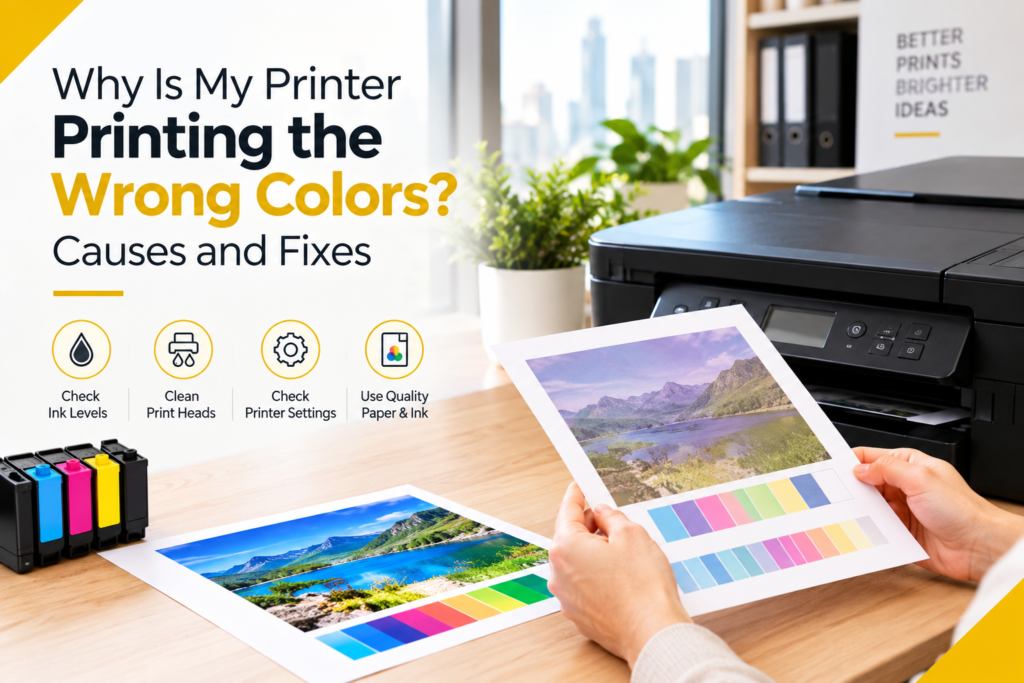
Few things are more frustrating than hitting “print” and watching your document come out with a strange color cast — reds that look orange, blues that turn purple, or skin tones that appear green or yellow. If you’ve ever asked yourself, “why is my printer printing the wrong colors?”, you’re not alone. This is one of the most common printer troubleshooting issues faced by home users and businesses alike, and thankfully, most causes are easy to diagnose and fix without calling a technician.
In this guide, we’ll walk through the most common reasons behind printer color problems, how to identify what’s causing yours, and step-by-step fixes to get your prints looking accurate again.
Common Symptoms of Printer Color Issues
Before diagnosing the cause, it helps to identify exactly what’s going wrong. Common printer color inaccuracy symptoms include:
- Colors appear washed out or faded
- Prints have an unwanted color tint (pink, green, yellow, or blue cast)
- Black text or images print with a color tinge instead of true black
- Colors on screen don’t match the printed output
- Streaky or patchy color bands across the page
- One color is missing entirely, causing distorted hues
Identifying which symptom matches your situation will help narrow down the exact fix
Top Causes of a Printer Printing Wrong Colors
1. Low or Empty Ink/Toner Cartridges
This is by far the most common cause of inkjet printer color problems. When one cartridge — say, cyan or magenta — runs low, the printer compensates using the remaining colors, resulting in a skewed color balance. A print that should be purple might come out blue, or reds might look orange.
Fix: Check ink levels through your printer’s software or control panel. Replace any cartridge that’s low, even if it’s not the color you’d expect to be causing the issue — a shortage in one channel affects the whole color mix.
2. Clogged Print Heads or Nozzles
Over time, dried ink can clog the tiny nozzles in a print head, especially if the printer hasn’t been used recently. This causes incomplete color transfer, streaking, or missing colors — a frequent culprit behind inkjet color banding and uneven prints.
Fix: Run the built-in print head cleaning utility, usually found in your printer’s maintenance menu or software. Most manufacturers (HP, Canon, Epson, Brother) include this tool. After cleaning, print a nozzle check pattern to confirm all colors are firing correctly. If clogging persists, manual cleaning with a lint-free cloth and distilled water (for removable print heads) may help.
3. Incorrect or Outdated Printer Drivers
Outdated, corrupted, or mismatched printer drivers are a frequent but overlooked cause of color printing errors. If your driver isn’t communicating properly with your operating system, color profiles can be misapplied.
Fix: Visit the manufacturer’s official website (HP, Canon, Epson, Brother, etc.) and download the latest driver for your exact printer model and operating system. Uninstall the old driver completely before installing the new one to avoid conflicts.
4. Wrong Color Profile or ICC Settings
Every printer uses an ICC color profile to translate digital colors into physical ink combinations. If the wrong profile is selected — or if a generic profile is being used instead of one calibrated for your specific printer and paper type — colors can shift noticeably.
Fix: Go into your printer settings and confirm the correct ICC profile is selected for the paper and print mode you’re using. Many manufacturers provide downloadable, media-specific color profiles on their support pages for more accurate color-accurate printing.
5. Incorrect Print Settings (Color Mode Mismatch)
Sometimes the issue isn’t the printer at all — it’s a settings mismatch. Printing in “Grayscale” when you meant “Color,” or using an RGB file sent to a printer expecting CMYK, can cause unexpected color shifts.
Fix: Double-check your print dialog box settings before printing:
- Confirm “Color” mode is selected, not grayscale or black-and-white
- Match color mode (RGB vs. CMYK) to your printer’s requirements
- Disable any “color management by application” conflicts if your printer software also manages color (having both active can cause double-correction and distorted results)
6. Using Third-Party or Refilled Ink Cartridges
Non-OEM (original equipment manufacturer) ink cartridges or refilled cartridges often have different chemical compositions than genuine ink. This can cause color inconsistency in printing, especially in producing accurate skin tones, greens, and blues.
Fix: While third-party ink can be more budget-friendly, if you’re experiencing persistent color issues, try switching back to genuine manufacturer cartridges to see if the problem resolves. This helps isolate whether the ink itself is the root cause.
7. Dirty or Damaged Print Rollers and Internal Components
Dust, dried ink residue, or toner buildup inside the printer can affect how color is laid down on the page, leading to streaks, smudges, or color contamination between cartridges.
Fix: Perform a manufacturer-recommended internal cleaning cycle, or manually clean accessible rollers and trays with a dry, lint-free cloth. Avoid touching print heads directly with bare hands, as skin oils can cause further clogging.
8. Monitor Calibration vs. Printer Output Mismatch
Sometimes the printer isn’t wrong at all — the issue is that your screen colors don’t match printed colors because your monitor isn’t calibrated. Screens display color using light (RGB), while printers use ink (CMYK), and without calibration, what you see on-screen may never perfectly match your printed output.
Fix: Use a monitor calibration tool or built-in OS calibration wizard (Windows and Mac both offer basic versions) to align your screen’s color output closer to real-world printed results. For professional or high-volume printing, a hardware colorimeter offers the most accurate calibration.
9. Faulty or Aging Printer Hardware
If you’ve tried all software and cartridge fixes and the problem persists, the issue may be a failing print head, a malfunctioning color sensor, or general wear from age and heavy use — common in printers nearing the end of their lifecycle.
Fix: Contact the manufacturer’s support line or a certified repair technician. In many cases, especially with inkjet printers, replacing an aging unit may be more cost-effective than repeated repairs.
Quick Troubleshooting Checklist
- Check and replace low ink/toner cartridges
- Run a nozzle check and print head cleaning cycle
- Update printer drivers to the latest version
- Verify the correct ICC color profile is selected
- Confirm color mode settings (not grayscale, correct RGB/CMYK)
- Test with genuine OEM ink cartridges
- Clean internal rollers and components
- Calibrate your monitor for accurate color comparison
- Print a test page to confirm improvement after each fix
When to Call a Professional
If you’ve worked through every fix above and your printer is still producing inaccurate color prints, it may indicate a hardware fault such as a damaged print head, failing color sensor, or internal wiring issue that requires professional diagnosis. Most manufacturers offer dedicated technical support lines, and authorized service centers can perform deeper diagnostics than home troubleshooting allows.
Final Thoughts
Printer color problems are almost always fixable, and in most cases, the culprit is something simple: a low cartridge, an outdated driver, or a mismatched color profile. Working through the causes systematically starting with the easiest and cheapest fixes first will save you time, money, and frustration.
By keeping your cartridges fresh, your drivers updated, and your color profiles correctly configured, you’ll ensure your printer consistently produces vibrant, accurate colors for every print job.