
How to Fix Canon Printer Printing Blank Pages Issue?
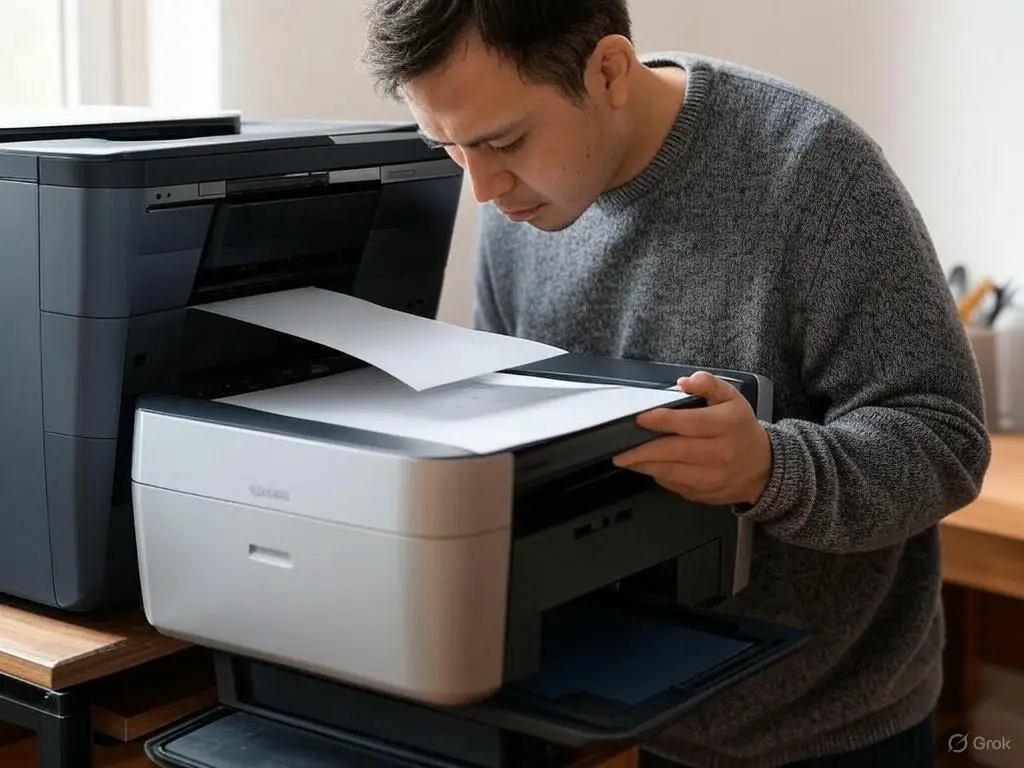
Is your Canon printer printing blank pages instead of your documents? This is a frustrating issue that many users face, but the good news is that it is often fixable. Several factors can cause this problem, from ink-related issues to software glitches.
This guide will walk you through the common reasons behind blank page printing and provide step-by-step solutions to resolve the issue. Whether you have a Canon PIXMA, MAXIFY, or another inkjet model, these methods can help restore your printer’s functionality.
The Main Reasons Of Canon Printer Printing Blank Pages
There are several possible reasons why your Canon printer is producing blank pages instead of printing correctly. Understanding these causes will help you repair canon printers effectively. Below are the most common factors that can lead to blank prints:
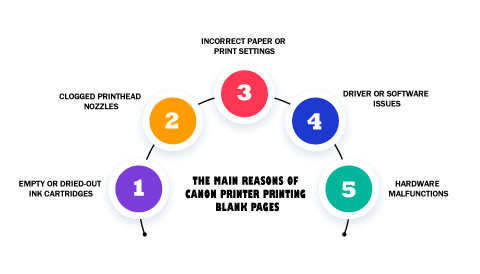
1. Empty or Dried-Out Ink Cartridges
- Low Ink Levels: If your printer’s ink cartridges are empty or running low, it may not be able to print properly. Some printers stop printing when ink levels are low to prevent damage to the printhead.
- Dried or Clogged Ink: If your printer hasn’t been used for a while, the ink inside the cartridges may have dried up. Even if the ink levels appear sufficient, dried-out ink can prevent proper ink flow, causing blank prints.
- Air Bubbles in the Cartridge: Air trapped inside the cartridge can block ink from reaching the printhead. This issue often occurs if the cartridge was improperly installed or replaced.
- Non-Genuine or Expired Ink Cartridges: Using third-party or expired ink cartridges can cause problems. This can lead to print failures. Canon printers work best with their genuine ink. Some models may not recognize or work well with third-party ink.
How to Fix It:
- Check ink levels using your printer software or the control panel settings.
- Replace empty or dried-out cartridges with genuine Canon ink cartridges, and ensure the toner is compatible if you are using a laser printer.
- Remove and reinstall the cartridges properly, ensuring they click into place.
- Run a test print using the printer software to see if the issue is resolved.
2. Clogged Printhead Nozzles
- The printhead is responsible for transferring ink onto paper. It uses precision nozzles, and over time, dried ink can lead to printhead clogging, preventing black or color ink from flowing properly and resulting in blank or faded prints.
- Printhead clogs are more common in printers that are not used regularly. If you only print occasionally, ink residue can harden inside the nozzles, blocking the ink and preventing black or color ink from printing correctly.
- Some Canon printers have separate printheads. Others have integrated cartridges that include the printhead in the ink cartridge.
How to Fix It:
- Use the Built-In Cleaning Cycle
Most Canon printers have an automated printhead cleaning function that helps remove minor clogs. You can access this from the printer settings or control panel. After cleaning, print a nozzle check pattern to verify if the ink is flowing properly. - Perform a Deep Cleaning
If a standard cleaning doesn’t work, try the deep cleaning option in the printer settings, followed by another nozzle check pattern to confirm improvement. - Manually Clean the Printhead
- Remove the printhead (if your printer allows it).
- Soak it in warm water for a few minutes to dissolve dried ink.
- Gently clean it using a lint-free tissue to avoid damage.
- Let it dry completely before reinstalling. This process is known as manual printhead cleaning.
- Run a test print to check if the issue is resolved.
3. Incorrect Paper or Print Settings
- Using the wrong paper type, incorrect printer settings, or issues with ink or hardware can cause blank pages. Some settings may cause the printer to feed paper without actually printing on it.
- Common settings that can cause this issue include:
- Paper Settings: If the printer settings do not match the correct paper size and type you loaded, the printer might misalign and print improperly. It may also eject blank pages.
- Incorrect Print Quality Settings: Some settings, such as draft mode or grayscale mode, may cause faint or blank prints. In certain cases, selecting “Print as Image” can help resolve the issue if the document continues to behave unusually.
- Page Scaling Issues: If the document has blank spaces or clear layers, the printer may see them as blank pages.
- Print to File Option Enabled: If you accidentally select this option, your printer may seem to print but won’t put ink on paper.
How to Fix It:
Ensure the correct paper size and type are selected in the printer settings.
Disable any unnecessary print options like “Print to File.”
Use high-quality printing mode if the default settings cause blank prints.
Try using different papers to check if the issue is related to the paper quality.
4. Driver or Software Issues
- Printer drivers are essential software components that allow your computer’s operating system to communicate with the printer. If these drivers are outdated, corrupted, or incompatible, your printer may not function properly, leading to blank printing and communication failures.
- Other software-related issues include:
- Incomplete or Failed Driver Installation: If the printer driver wasn’t installed correctly, it may cause blank printing.
- Operating System Conflicts: An update to Windows, macOS, or other operating systems may cause compatibility issues.
- Queued Print Jobs: If there are multiple stuck print jobs, they might interfere with normal printing.
How to Fix It:
- Update or Reinstall Printer Drivers:
- Go to Canon’s official website and download the latest drivers for your printer model.
- Uninstall the old drivers and install the updated ones.
- Restart the Printer and Computer: This can clear temporary glitches.
- Check for Software Conflicts: If you recently installed new software or updates, check if they affected your printer’s functionality.
- Clear Print Queue: Open the print queue and cancel any stuck print jobs before retrying.
5. Hardware Malfunctions
If none of the above solutions fix the issue, there may be a hardware problem. Some possible hardware-related causes include:
- Faulty Printhead: If the printhead is damaged, it won’t distribute ink properly, leading to blank pages.
- Paper Feed Issues: If the paper isn’t properly aligned or the paper detection system fails, the printer might feed blank pages. Using the wrong paper type can also contribute to this problem.
- Internal Printer Malfunctions: Defective sensors or other internal components can cause printing failures.
How to Fix It:
- Check for error messages on the printer display.
- Perform a factory reset to restore default settings.
- If possible, try printing from another device to see if the issue is related to the printer itself.
- If the problem persists, contact Canon support or take the printer to a certified technician for repairs.
Step-by-Step Guide to Fix Canon Printer Printing Blank Pages
If your Canon printer is printing blank pages while printing documents, or when using new paper or ink cartridges, follow this step-by-step guide to identify and resolve the issue.
Step 1: Check and Replace Ink Cartridges
1.1 Open the Printer Cover and Inspect Ink Levels
- Turn on the printer and open the ink cartridge access door.
- Wait for the cartridges to move to the center for easy inspection.
- Check the ink levels on the printer display or through the printer software on your computer to prevent unexpected blank pages.
1.2 Replace Empty or Dried-Out Cartridges
- If an ink cartridge is low or empty, remove it by gently pressing down and pulling it out.
- Install a genuine Canon ink cartridge to ensure compatibility.
- Insert the new cartridge into the correct slot and push it until it clicks into place.
Use the Preview feature when printing to delete any unnecessary pages and avoid wasting paper.
1.3 Ensure Proper Cartridge Installation
- After installing the new cartridge, close the cover and allow the printer to recognize it.
- Run a test print to check if the issue is resolved.
Step 2: Clean the Printhead
If ink cartridges are full but the printer still prints blank pages, the printhead may be clogged.
2.1 Use the Printer’s Built-in Cleaning Function
- Open the printer software on your computer.
- Navigate to Maintenance > Cleaning > Deep Cleaning (the exact option may vary based on your printer model).
- Follow the on-screen instructions and allow the printer to complete the cleaning cycle.
- Print a test page to check if the problem is fixed.
2.2 Manually Clean the Printhead (If Necessary)
- If the built-in cleaning does not work, try manual cleaning.
- Turn off the printer and unplug it for safety.
- Remove the printhead (if your printer has a removable one). Refer to the user manual for proper removal instructions.
- Soak the printhead in warm water for a few minutes to dissolve dried ink. Do not use boiling water or cleaning chemicals.
- Let the printhead dry completely before reinstalling it. Use a lint-free cloth to gently pat it dry if needed.
- Reinstall the printhead and cartridges, then run a test print.
Step 3: Verify Paper and Print Settings
Incorrect print settings or incompatible paper can also cause blank pages.
3.1 Check Paper Type and Quality
- Make sure the paper is properly loaded into the tray.
- Use high-quality printing paper and avoid damaged or wrinkled sheets.
- Try using a different batch of paper to rule out quality issues.
3.2 Adjust Print Settings
- Open Printer Settings on your computer.
- Ensure the correct paper size, type, and quality settings are selected.
- If your document has blank pages, check the settings to prevent printing blank pages.
- Run a test print after making adjustments.
Step 4: Update or Reinstall Printer Drivers
Outdated or corrupt printer drivers can cause printing problems.
4.1 Update Printer Drivers
- Go to the Canon Support website and download the latest drivers for your printer model.
- Follow the installation instructions to update the drivers.
4.2 Reinstall Printer Software (If Needed)
- If updating drivers doesn’t fix the issue:
- Uninstall the existing printer software from your computer.
- On Windows: Go to Control Panel > Devices and Printers, right-click on the printer, and select Remove Device.
- On Mac: Go to System Preferences > Printers & Scanners, select the printer, and click Remove.
- Restart your computer after uninstalling the software.
- Reinstall the printer software using the latest version from the Canon website.
Step 5: Perform a Printer Reset
If the issue persists, resetting the printer can help clear software glitches.
5.1 Soft Reset (Power Cycle the Printer)
- Turn off the printer and unplug it from the power source.
- Wait 5-10 minutes to allow any residual power to clear.
- Plug the printer back in and turn it on.
- Try printing a test page.
5.2 Factory Reset (If Necessary)
- If a power cycle does not fix the issue, try a factory reset:
- Open Printer Settings on the control panel.
- Navigate to Reset or Restore Settings.
- Select Restore Default Settings or Factory Reset (depending on the printer model).
- Confirm the reset and allow the printer to restart.
- Reconfigure your printer and test it again.
Step 6: Inspect for Hardware Issues
If none of the above solutions work, there may be a hardware malfunction.
6.1 Check Printer Connections
- If using a USB connection, ensure the cable is securely plugged in and not damaged. Try using a different USB port or cable.
- If using Wi-Fi printing, restart your router and reconnect the printer to the network.
- If the printer is connected to multiple devices, try printing from another device to check if the issue is with the printer or computer.
6.2 Contact Canon Support
- If the printer still prints blank pages, it may have a faulty printhead or internal hardware failure.
- Check for error messages on the printer display.
- Contact Canon customer support for further troubleshooting or repair options.
- If the printer is under warranty, you may be eligible for a replacement or repair service.
- If the printer is out of warranty, take it to a professional printer repair service for fixing.
Which Canon Printers Can These Methods Be Used For?
These troubleshooting steps apply to most Canon inkjet and PIXMA models, including:
- Canon PIXMA MG3620
- Canon PIXMA TS9120
- Canon MAXIFY MB2720
- Canon PIXMA TR8520
- Canon imageRUNNER 1643iF (Photocopier)
While these steps work for most models, always refer to your printer’s manual for model-specific instructions.
Tips to Prevent Blank Pages in the Future
1. Clean the Printhead Regularly
Ink can dry out and clog the nozzles if the printer is not used often. To prevent this, use the printer’s cleaning function once a month. If you don’t print regularly, print a test page every few weeks. This will keep the ink flowing properly and stop clogs from forming.
2. Use Original Canon Ink Cartridges
Always use genuine Canon ink cartridges to avoid compatibility issues and poor print quality. Cheap or fake cartridges may not work well and can damage the printhead. Also, check the expiration date before installing a cartridge, as expired ink can dry out and cause blank prints.
3. Keep Printer Software and Drivers Updated
Old or outdated software can cause printing errors. Check the Canon Support website regularly to download the latest software updates. If your printer allows automatic updates, turn them on. Updated software and printer firmware can improve performance and fix bugs, helping your printer work smoothly and reducing problems.
4. Store and Handle Paper Correctly
Paper that is damp, wrinkled, or dusty can cause blank pages or printing errors. Store your paper in a cool, dry place away from sunlight and keep it flat to prevent drying out prematurely or moisture damage. Do not overload the paper tray, and always use paper that is in good condition. Before loading the paper, fan the sheets to prevent them from sticking together.
5. Turn Off the Printer Properly
Always turn off your printer using the power button instead of unplugging it directly. This helps the printhead return to its correct position, stopping ink from drying inside the nozzles. If the printer is turned off the wrong way, ink can clog, causing print issues later.
6. Use the Printer Regularly
If a printer is not used for a long time, the ink can dry and block the nozzles. To avoid this, print a small test page every one or two weeks. This keeps the ink moving and stops clogging, ensuring your printer stays in good working condition.
By following these simple steps, you can keep your Canon printer working well and prevent blank pages. Regular care will help your printer last longer and give you better print results.
When to Seek Professional Help
If you have tried all the troubleshooting steps and your Canon printer is still printing blank pages, you may need professional printer repair assistance. Consider reaching out to Canon customer support if:
- The issue persists even after replacing ink cartridges and performing advanced troubleshooting steps like printhead cleaning and checking printer settings.
- The printer displays error codes or shows an issue with the printer hardware.
- There are signs of physical damage to the printer.
Final Thoughts
Blank pages from your Canon printer can happen for many reasons. These include empty ink cartridges, clogged printheads, wrong settings, or hardware problems. This is one of the common printer problems that users face, but by systematically troubleshooting each potential cause, you can identify the root of the issue and take the necessary steps to fix it.
If you’ve tried all the solutions above and your printer is still printing blank pages, it may be time to seek professional repair or consider replacing the printer.